Yes, connect the tools you already use: a CRM works best when your website, inbox, calendar and accounting apps feed it automatically. Prioritize one or two high-impact connectors (website lead capture and email sync), use native connectors wherever your apps support them, and add one middleware tool like Zapier or Make for everything else. Pick a single repeatable workflow this week, such as new web leads landing straight in your CRM, and get it running before you touch anything else. (If you are still deciding whether and how to automate, start with our companion guide to CRM automation for small businesses, which covers which workflows to automate first; this piece is about wiring the tools together.)
How Do CRM Integrations Actually Work?
Automation decides what your CRM does for you; integration decides what your CRM knows about. This piece covers the wiring: how the apps you already pay for connect to it. Before you connect anything, it helps to know what you are choosing between. Most small-business CRM integrations fall into four categories, and each one fits a different budget and skill level.
A native connector is a built-in link your CRM vendor already built for a popular app, like Gmail, QuickBooks, or Mailchimp. You turn it on in settings, authorize the connection, and it runs. Middleware, such as Zapier or Make, sits between apps that do not talk to each other natively. You build simple “if this happens, do that” automations without writing code. A webhook is a small message one app sends to another the instant something happens, like a new form submission. A server-to-server or API connection is a direct, authenticated link between two systems built for higher volume or more sensitive data, and it usually needs a developer.
Here is how they stack up for a small team:
- Native connectors: fastest to set up, lowest maintenance, but limited to what the vendor supports.
- Middleware: flexible and affordable, ideal for non-developers, though it adds a small monthly fee and a bit of lag.
- Webhooks: near-instant and lightweight, but they need mapping and signature verification to avoid dropped or duplicate data.
- Server-to-server APIs: the most reliable and secure option for high volume, but they require developer time and ongoing upkeep.
Capterra’s research on small-business CRM buyers confirms that integration with email, accounting, and website tools is now a baseline expectation, not a luxury feature, which is why starting with native connectors and middleware makes sense before anything custom.
A few signals tell you it is time to move beyond middleware: you are processing more than a few hundred records a month, you are handling sensitive payment or health data, or your workflow needs a response in under a second. Short of those, native plus one middleware tool covers nearly every small-business case.
Which CRM Integrations Pay Off Fastest for Small Businesses?
Not every integration deserves your time in week one. Some save you hours; others barely move the needle. Rank them by how much manual work they remove or how directly they touch revenue.
- Website lead capture: every form submission becomes a CRM contact instantly, with no copy-pasting and no delayed follow-up.
- Email sync: your inbox and CRM share the same conversation history, so nobody has to ask “did we already talk to this person?”
- Calendar sync: meetings booked through your scheduling tool show up automatically on the contact record.
- Accounting integration: invoices and payment status flow between your CRM and QuickBooks or similar software, keeping sales and finance aligned.
- Phone and telephony: call logs and voicemail transcripts attach to the right contact without manual entry.
- Chat and review automation: new chat conversations and review requests trigger follow-up tasks automatically.
- Audit your current tools and fields. List every app that touches customer data today, from your email platform to your invoicing software.
- Choose one workflow to automate first. Resist the urge to connect everything at once.
- Map fields and decide data ownership. Agree on which system is the source of truth for each field, like email address or deal stage.
- Pick your integration method. Favor a native connector if one exists, middleware if it does not, and an API only when volume or security demands it.
- Set up a dedicated integration identity with least-privilege access. Never connect apps using a personal login.
- Test with sample data before going live. Run a handful of fake leads through the full workflow to confirm each step fires correctly.
- Verify webhook signatures and payload structure. This step catches silent errors that otherwise show up as missing or duplicate records weeks later.
- Monitor quotas, errors, and sync logs for the first two weeks. Most integration problems surface in the early days.
- Schedule a 30-day review. Check volume, errors, and whether the workflow is actually saving time before adding a second one.
- A native connector or simple middleware flow: a day or two of setup and testing.
- A custom webhook or API integration: several weeks, depending on volume and authentication complexity.
- A 30-day monitoring window before adding your next workflow.
- Setup and migration: moving existing contacts and cleaning up duplicate records before launch.
- Middleware subscription: a monthly fee for Zapier, Make, or a similar tool, usually tied to how many automation runs you need.
- Per-API-call costs: some integrations charge based on volume once you exceed a free tier.
- Developer hours: needed for any custom webhook or API work, even if only for initial setup.
- Ongoing maintenance and monitoring: checking for broken connections, expired tokens, or failed syncs.
- Identify: list every app connected to your CRM and what data each one can see.
- Protect: use a dedicated integration identity for each connection with least-privilege access, not your personal login.
- Detect: turn on logging and alerts for failed syncs or unusual access patterns.
- Respond: have a plan for revoking and rotating credentials if one app is compromised.
- Recover: keep a recent backup or export of your CRM data separate from the integration itself.
- Start with the workflow that removes the most manual entry, not the most technically interesting one.
- Measure results before adding a second automation.
- Use native connectors and middleware for most small-business needs, reserving custom API work for higher-volume or security-sensitive cases.
Choose your first one or two based on where the manual work actually hurts. If you are retyping web form submissions into a spreadsheet every morning, lead capture is your answer. If your team spends an hour a day hunting for email threads, email sync wins.
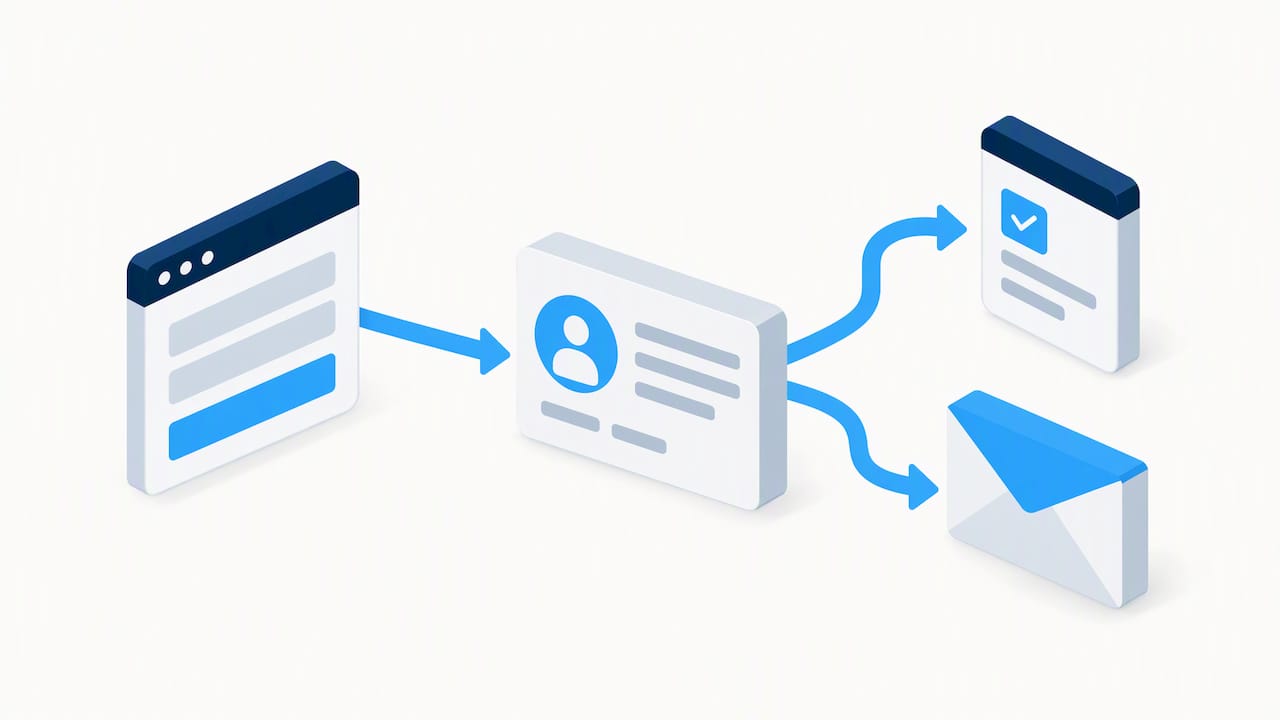
Here is the integration most small businesses build first: a visitor fills out your website contact form, the CRM creates a new contact automatically, assigns a follow-up task to a salesperson, and fires off an autoresponder email within seconds. That single workflow often eliminates the biggest lead-leak point in a small business: the gap between “someone showed interest” and “someone followed up.”
Capterra’s buyer research backs this prioritization, noting that integrations which either generate revenue or eliminate repetitive labor deliver the fastest payoff for small-business CRM users. Before locking in a CRM, it also pays to price the exact workflow you intend to automate rather than the software in general, since the real cost depends on the specific sequence of steps you are connecting, not just the monthly subscription.
If you run email-heavy outreach alongside your CRM, a dedicated email API built for structured sending and receiving, like the agent mailbox infrastructure from Sendmux, can simplify the routing between your outreach tool and your CRM’s contact records.
Pro Tip: Automate your highest-volume, most repetitive workflow first, not your most complex one. Quick wins build the case for everything you add later.
A Step-by-Step Checklist for Connecting Your CRM to Existing Apps
Treat your first CRM integration as a small project, not a weekend task. Here is the order that keeps things from breaking.
A few testing details matter more than they seem. Replaying a sample payload through your webhook, confirming signature verification, and running a sandbox test before connecting live data all reduce the risk of silent data loss or duplicate records, which is one of the most common and hardest-to-spot integration failures.
For time budgeting, expect the following:
Our own pattern for small-business clients follows this same order: automate one workflow first, confirm it works cleanly, then expand.
What Does CRM Integration Really Cost a Small Business?
CRM pricing rarely stops at the monthly subscription. The real total cost of ownership includes several line items that are easy to underestimate when you are comparing plans.
Capterra’s pricing guide flags several hidden costs that catch small businesses off guard: automation run limits, record caps, extra-user fees, and SMS or email sending charges that kick in once you exceed a plan’s included volume. A detailed CRM pricing breakdown from Capterra shows these add-on costs often rival the base subscription price itself, which is why a 12-month budget walkthrough matters more than a single month’s invoice.
A simple way to build that budget: list your CRM subscription, add your middleware subscription, estimate one month of automation runs at your expected volume, add any per-user fees for your team size, and multiply by twelve. Add a one-time line for setup and migration. That total, not the advertised monthly price, is your real first-year cost.
Security and Data Hygiene Best Practices for an Integrated CRM
Connecting your CRM to other apps multiplies the number of doors into your customer data, so a few basic controls go a long way.
The NIST Cybersecurity Framework, as outlined by the FTC for small businesses, breaks protection into five practical areas: identify what data and connections you have, protect them with access controls, detect problems quickly, respond when something goes wrong, and recover without losing data. Mapping your integrations to these five areas turns a vague “be secure” goal into a checklist you can actually follow.
Salesforce’s own developer guidance recommends a dedicated integration user and OAuth client credentials for server-to-server connections, which keeps each app’s access auditable and easy to shut off individually if something goes wrong. Separate integration identities also reduce the risk if one set of credentials is compromised, since the damage stays contained to that single connection.
On the data hygiene side, set clear rules for which system owns which field, run periodic duplicate checks, and validate incoming data formats before they hit your CRM. A short incident checklist, who to notify and which credentials to rotate first, saves confusion if a connection is ever compromised.
Pro Tip: Rotate API keys and integration credentials on a set schedule, not only when something breaks.
How EngageZing Approaches CRM Integration for Small Businesses
We follow a simple sequence with every small-business client: audit the tools already in use, connect the one integration causing the most manual work, measure the result, then scale to the next connection. That order keeps a project from stalling under too many moving pieces at once, and it is the same audit-first discipline behind our CRM automation playbook.
We start by mapping which apps a business already relies on and identifying one connection causing the most manual work. From there, we build and test that single workflow, confirm it is capturing leads or syncing data correctly, and then move to the next priority on the list.
This approach reflects what we have seen work across client engagements:
Clients working with us on broader digital marketing campaigns have reported significant gains in online performance, a figure tied to our overall service mix rather than integration work alone.
A short paid engagement with our team typically starts with an audit of your current tools and workflows, followed by implementation of one or two priority integrations and a review period to confirm they are working as intended. Our business operating system approach applies that same audit-first discipline to the broader set of operations a small business runs day to day.
The Real Mistake Small Businesses Make With CRM Integration
Most advice on this topic treats integration as an all-or-nothing technical project: connect everything, map every field, and launch a fully automated system on day one. That approach is backward for a small team. The businesses that get the most value start absurdly small, often with a single workflow, and resist adding a second integration until the first one is proven.
The conventional wisdom also overweights the integration method itself, debating native versus API versus middleware, when the bigger risk is almost always unclear field ownership. Two systems arguing about which one holds the “correct” phone number causes more damage than a slightly slower sync.
If you take one thing from this playbook, prioritize ruthlessly. Pick the workflow draining the most manual hours, automate only that, and give it thirty days before touching anything else. Speed comes from restraint here, not from connecting every tool you own at once.
Get a Roadmap Analysis Before You Integrate
Before you connect a single app, it helps to see exactly where your current website and customer workflows are leaking leads. Our Roadmap Analysis gives you a personalized look at your online presence and maps directly into our Conversion Roadmap and 12-Month Growth Roadmap services, so you know which integration to prioritize first instead of guessing.
To get the most out of your analysis, have a few things ready: a list of the tools your business currently uses, the one workflow you most want automated, and a sample of recent leads or contacts. If your website itself needs work before lead capture can shine, our Winning Websites team builds sites designed to feed clean data straight into your CRM.
Ready to see your results? Get your Roadmap Analysis and talk with one of our local experts about your next step.
Frequently Asked Questions
What is a good CRM for a small business?
A good small-business CRM is one that natively connects to the tools you already use, like your email, calendar, and website forms, without requiring custom development. Look for straightforward field mapping and a pricing structure that will not surprise you as your contact list grows.
Will CRM be replaced by AI?
CRM platforms are increasingly building AI features directly into contact management, follow-up suggestions, and automation, rather than being replaced by AI. The practical shift for small businesses is a CRM that automates more of the manual work, not a new category of software taking its place.
How much does a CRM cost for a small business?
Total CRM cost includes more than the advertised subscription: setup and migration, a middleware subscription if you use one, per-API-call charges past a free tier, and fees for extra users or automation runs. Capterra’s CRM pricing guide breaks down these recurring and hidden costs in detail.
Which CRM is best for small business?
The best choice depends on which tools you need it to connect with, since integration support varies by vendor. Capterra’s small-business CRM research found that integration with email, accounting, and website lead capture tools is a baseline expectation across leading small-business CRM options.
Share This Article
Found this useful? Send it to another owner who is still is still copy-pasting between apps.
Share on Facebook · Share on X · Share on LinkedIn · Share on Pinterest
Want More Information? Let’s Talk.
If you would rather not take this on yourself, we handle it for you. Our Business OS (uBOS) service takes care of the setup and the ongoing work, then reports back so you can see exactly what changed. You keep running your business; we keep this moving.
Call us at 631-825-9464 or reach out here. No pressure, no obligation, and you can ask us anything — including whether this is even worth doing for a business your size.
Looking ahead, request your roadmap analysis and we will map out a 12-month plan to close the conversion leaky bucket so more of the customers you already reach turn into booked work.
Written by Joe Leineke · Content on this blog is generated with AI assistance and independently reviewed and fact-checked by human marketing professionals for accuracy and quality.